

Cloud Hosted Router, CHR
Cloud Hosted Router, CHR
Section titled “Cloud Hosted Router, CHR”Cloud Hosted Router (CHR) is a RouterOS version intended for running as a virtual machine. It supports the x86 64-bit architecture and can be used on most popular hypervisors including VMware, Hyper-V, VirtualBox, KVM, and others. CHR has full RouterOS features enabled by default but uses a different licensing model than other RouterOS versions.
Overview
Section titled “Overview”CHR provides a full-featured RouterOS virtual machine that can be deployed on industry-standard hypervisors. This allows organizations to leverage MikroTik’s routing capabilities in virtualized environments, whether on-premises or in cloud infrastructure.
Key Capabilities
Section titled “Key Capabilities”- Full RouterOS feature set in a virtual machine format
- Support for multiple hypervisors including VMware, Hyper-V, VirtualBox, and KVM
- Flexible licensing options from free to unlimited throughput
- 60-day trial for all paid license levels
- Cloud deployment options including AWS, Google Cloud, Hetzner, and more
Architecture
Section titled “Architecture”CHR operates as a paravirtualized guest operating system optimized for running as a virtual machine. Unlike RouterOS on physical hardware, CHR is designed specifically for virtualized environments with appropriate drivers and optimizations.
| Component | Description |
|---|---|
| Virtual Disk Images | Pre-built images for VMware, Hyper-V, VirtualBox, and KVM |
| Paravirtualized Drivers | Optimized network and disk drivers for each hypervisor |
| License Management | Web-based account server for license control |
| RouterOS Features | Complete feature set without hardware limitations |
System Requirements
Section titled “System Requirements”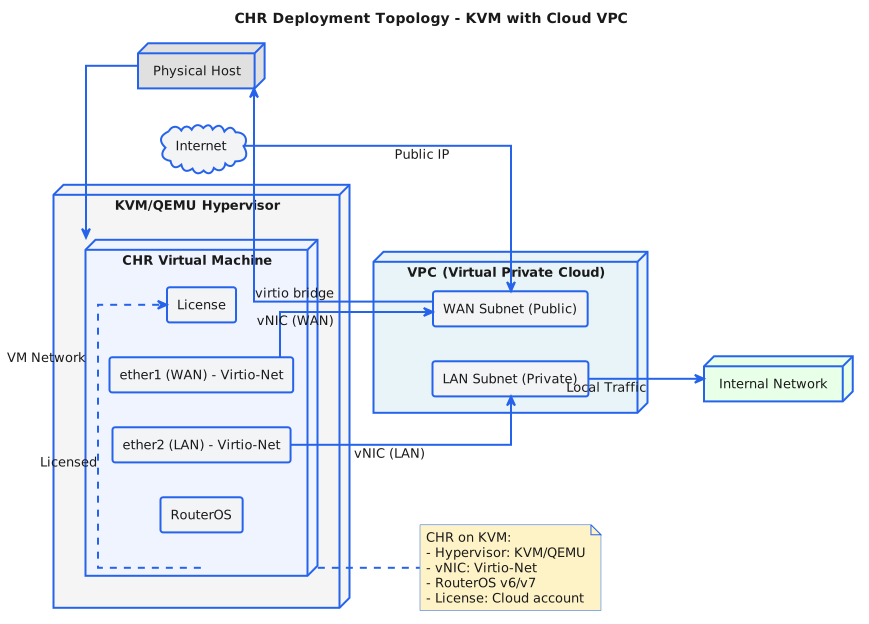
Before deploying CHR, ensure your hypervisor host meets these minimum requirements:
Hardware Requirements
Section titled “Hardware Requirements”| Requirement | Details |
|---|---|
| Package version | RouterOS v6.34 or newer |
| Host CPU | 64-bit with virtualization support (Intel VT-x or AMD-V) |
| RAM | 256MB or more (1024MB recommended) |
| Disk | 128MB or more |
| RouterOS v6 | Maximum virtual hard drive size is 16GB |
| RouterOS v7 | Maximum RAM and disk limited by Linux kernel 5.6.3 |
Memory Calculation
Section titled “Memory Calculation”The minimum required RAM depends on interface count and CPU count. Calculate using these formulas:
# RouterOS v6RAM = 128 + [ 8 × (CPU_COUNT) × (INTERFACE_COUNT - 1) ]
# RouterOS v7RAM = 256 + [ 8 × (CPU_COUNT) × (INTERFACE_COUNT - 1) ]
For most deployments, allocate at least 1024MiB of RAM for stable operation.
Supported Hypervisors
Section titled “Supported Hypervisors”CHR has been tested and verified on the following platforms:
- VirtualBox 6 on Linux and macOS
- VMware Fusion 7 and 8 on macOS
- VMware ESXi 6.5 and higher
- Qemu 2.4.0.1 on Linux and macOS
- Hyper-V on Windows Server 2008r2, 2012, and Windows 10 (Generation 1 VMs only)
- Xen Server 7.1
Hypervisors that provide paravirtualization are not supported. CHR requires full virtualization capabilities.
Virtual Network and Disk Interfaces
Section titled “Virtual Network and Disk Interfaces”Supported Interfaces by Hypervisor
Section titled “Supported Interfaces by Hypervisor”| Hypervisor | Network Interfaces | Disk Interfaces |
|---|---|---|
| ESX | vmxnet3, E1000 | IDE, VMware paravirtual SCSI, LSI Logic SAS, LSI Logic Parallel |
| Hyper-V | Network adapter, Legacy Network adapter | IDE, SCSI |
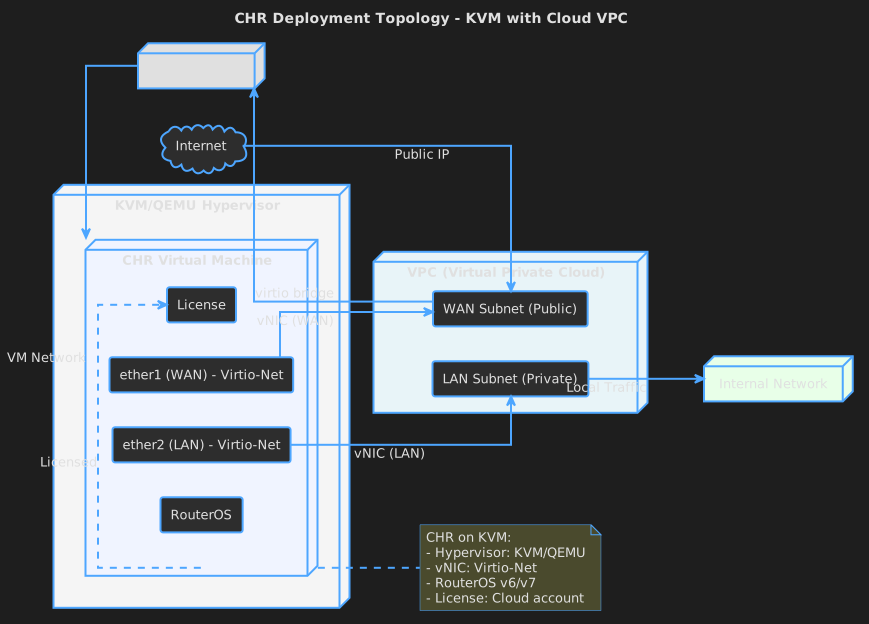
| Qemu/KVM | Virtio, E1000, vmxnet3 (optional) | IDE, SATA, Virtio |
| VirtualBox | E1000, rtl8193 | IDE, SATA, SCSI, SAS |
SCSI controllers on Hyper-V and ESX are usable only for secondary disks. The system image must use the IDE controller.
We do not recommend using the E1000 network interface if better synthetic interface options are available on your specific hypervisor.
Virtual Network Adapters
Section titled “Virtual Network Adapters”Fast Path is supported in RouterOS v7 for “vmxnet3” and “virtio-net” adapters. RouterOS v6 does not support Fast Path with virtual adapters.
Installation
Section titled “Installation”MikroTik provides four different virtual disk images for CHR installation:
- RAW disk image (.img file)
- VMware disk image (.vmdk file)
- Hyper-V disk image (.vhdx file)
- VirtualBox disk image (.vdi file)
Installation Steps
Section titled “Installation Steps”-
Download the virtual disk image for your hypervisor from the MikroTik download page in the Cloud Hosted Router section
-
Create a new virtual guest machine on your hypervisor
-
Attach the downloaded image file as the virtual disk drive
-
Start the CHR virtual machine
-
Log in with the default user ‘admin’ (no password)
# Default login credentialsUsername: adminPassword: (empty)Important Notes
Section titled “Important Notes”- CHR systems can be cloned and copied, but the clone will be aware of the previous trial period
- You cannot extend your trial time by making copies of your CHR
- You are allowed to license both original and cloned systems individually
- To create a new trial system, perform a fresh installation and reconfigure RouterOS
Platform-Specific Guides
Section titled “Platform-Specific Guides”Hypervisors
Cloud Providers
Automation
Licensing
Section titled “Licensing”CHR uses a separate licensing system from physical RouterOS devices. The licensing model is based on throughput tiers rather than hardware capabilities.
License Levels
Section titled “License Levels”| License | Speed Limit | Price |
|---|---|---|
| Free | 1Mbit | FREE |
| P1 (perpetual-1) | 1Gbps | $45 |
| P10 (perpetual-10) | 10Gbps | $95 |
| P-Unlimited (perpetual-unlimited) | Unlimited | $250 |
Perpetual Licenses
Section titled “Perpetual Licenses”Perpetual licenses are lifetime licenses (buy once, use forever). Key characteristics:
- Possible to transfer a perpetual license to another CHR instance
- A running CHR instance indicates when it must access the account server to renew its license
- If the CHR cannot renew its license, it behaves as if the trial period has run out
- RouterOS upgrades and package changes are disabled when license expires
Free License
Section titled “Free License”The free license level allows CHR to run indefinitely with these limitations:
- Limited to 1Mbps upload per interface
- All RouterOS features are available without restrictions
- No account registration required
- Simply download the disk image and create a virtual guest
60-Day Trial
Section titled “60-Day Trial”All paid license levels include a 60-day free trial:
- Register an account at MikroTik.com
- Request the desired license level for trial from your router
- The router will assign your Router ID to your account
- All paid license equivalents are available for trial
After 60 days, the license menu will show “Limited upgrades,” meaning RouterOS can no longer be upgraded or have package changes.
# Request trial license — requires MikroTik account credentials and desired level/system license renew account=your-username password=your-password level=p1If your trial ends and no purchases are made within 2 months after the end date, the device will no longer appear in your MikroTik account. You must make a new CHR installation to complete a purchase.
If you plan to use multiple virtual systems on certain cloud providers like Linode, they may have the same system ID. Run /system license generate-new-id after first boot and before requesting a trial license.
Purchasing Licenses
Section titled “Purchasing Licenses”Prepaid Keys
Section titled “Prepaid Keys”A Prepaid Key is a license key purchased in advance that can be applied to a CHR or converted to an x86 system’s Software ID.
Purchasing Steps
Section titled “Purchasing Steps”- Log in to mikrotik.com
- Navigate to “Purchase a RouterOS License Key”
- Choose the desired license level
- Select “Prepaid key” as the key type
- Input quantity and any optional features
- Complete checkout with Credit Card or PayPal
Activating a Purchased License
Section titled “Activating a Purchased License”After purchasing, you must manually activate the license on your CHR:
# View current license/system license print
# Renew with your MikroTik account (all parameters required on one line)/system license renew account=your-username password=your-password level=p1
# Example output after licensing[admin@MikroTik] > /system license print system-id: 6lR1ZP/utuJ level: free
[admin@MikroTik] > /system license renew account=mymikrotikcomaccount password=mypassword level=p1
[admin@MikroTik] > /system license print system-id: 6lR1ZP/utuJ level: p1 limited-upgrades: no next-renewal-at: 2024-08-25 13:18:06 deadline-at: 2024-09-24 13:18:06Upgrading Licenses
Section titled “Upgrading Licenses”You can upgrade from P1 to P10 or P-Unlimited. Once the upgrade is purchased, the former license becomes available for later use on your account.
License Management
Section titled “License Management”License Renewal
Section titled “License Renewal”The CHR indicates “next-renewal-at” - the time when it will attempt to contact the license server. Communication attempts are performed once hourly after this date and continue until the server responds.
If the “deadline-at” date is reached without successful communication, the router considers the license expired and disallows software updates and package changes, though the router continues operating.
License Transfer
Section titled “License Transfer”CHR installations are tied directly to your MikroTik account. Perpetual licenses can be transferred to another CHR instance registered under the same account.
Transfer process:
- Register the new machine under the same MikroTik account using
/system license renew - Both CHR machines will appear in “All CHR keys” section
- Use the “Transfer” button to transfer the license
Licenses cannot be transferred to another account. Prepaid keys can be transferred between accounts.
Expired Licenses
Section titled “Expired Licenses”An expired CHR license means the instance failed to renew before the “deadline-at” date or the 60-day trial ended. The router continues operating at the same tier, but software updates and package changes are disabled.
It is only possible to license an expired CHR instance using a Prepaid key.
Troubleshooting
Section titled “Troubleshooting”VMware ESXi Issues
Section titled “VMware ESXi Issues”Changing MTU
Section titled “Changing MTU”VMware ESXi supports MTU up to 9000 bytes. Virtual Ethernet interfaces added after the MTU change will properly pass jumbo frames. Interfaces added prior may be limited.
[admin@chr-vm] > interface ethernet printFlags: X - disabled, R - running, S - slave # NAME MTU MAC-ADDRESS ARP 0 R ether1 9000 00:0C:29:35:37:5C enabled 1 R ether2 1500 00:0C:29:35:37:66 enabledUsing Bridge on Linux
Section titled “Using Bridge on Linux”If the Linux bridge supports IGMP snooping and there are problems with IPv6 traffic, disable that feature:
echo -n 0 > /sys/class/net/vmbr0/bridge/multicast_snoopingPackets Not Passing
Section titled “Packets Not Passing”If a configured software interface (VLAN, EoIP, bridge) stops passing data:
- Check your virtualization management system security settings
- Allow other MAC addresses to pass
- Allow packets with VLAN tags if using VLANs
- For VLAN interfaces, define allowed VLAN tags
VLAN Configuration
Section titled “VLAN Configuration”In some hypervisors, VLANs must be configured on the hypervisor itself before use.
Enable Promiscuous mode in the port group or virtual switch used by the VM.
Hyper-V
Section titled “Hyper-V”Configure VLAN trunking at the virtual switch level.
Linode
Section titled “Linode”Multiple Linodes with the same disk size will have the same system ID. Run /system license generate-new-id after first boot before requesting a trial or paid license.
Hypervisors Not Supported
Section titled “Hypervisors Not Supported”CHR cannot run on bhyve hypervisor as it requires paravirtualization.
Cloud Deployment
Section titled “Cloud Deployment”Amazon Web Services (AWS)
Section titled “Amazon Web Services (AWS)”CHR is available as an Amazon Machine Image (AMI) in AWS Marketplace. Benefits include:
- Pay-as-you-go licensing integrated with AWS billing
- Automatic license management
- Scalable deployment across multiple instances
- Integration with AWS networking (VPC, Security Groups)
Google Compute Engine
Section titled “Google Compute Engine”Deploy CHR on Google Cloud Platform with:
- Pre-configured images available
- Integration with GCP networking
- Flexible instance sizing
Hetzner Cloud
Section titled “Hetzner Cloud”Dedicated CHR images available with:
- Competitive pricing
- Full virtualization control
- Integration with Hetzner networking
Common Cloud Considerations
Section titled “Common Cloud Considerations”- Ensure proper security group/firewall rules
- Configure appropriate network interfaces
- Plan for licensing management
- Consider cloud-specific performance optimizations
Guest Tools
Section titled “Guest Tools”VMware Tools
Section titled “VMware Tools”Time Synchronization
Section titled “Time Synchronization”Enable from GUI: ‘Synchronize guest time with host’. Backward synchronization is disabled by default.
Power Operations
Section titled “Power Operations”- poweron and resume scripts execute after power on/resume
- poweroff and suspend scripts execute before shutdown/suspend
- Script timeout is 30 seconds
- Failed script output is saved to files
Quiescing and Backup
Section titled “Quiescing and Backup”Guest filesystem quiescing is performed only when requested:
- freeze script executes before freezing
- thaw script executes after snapshot
- FAT32 disks are not quiesced
Guest Information
Section titled “Guest Information”Networking, disk, and OS info are reported to the hypervisor every 30 seconds.
KVM Guest Agent
Section titled “KVM Guest Agent”QEMU guest agent is available for KVM deployments:
- Execute scripts using guest-exec command
- Host-guest file transfer via guest-file-* commands
- Retrieve guest networking information with guest-network-get-interfaces
Best Practices
Section titled “Best Practices”-
Allocate Sufficient Resources: Use at least 1024MB RAM and multiple vCPUs for production workloads
-
Use Paravirtualized Drivers: Prefer vmxnet3 (VMware) or Virtio (KVM) over E1000 for better performance
-
Plan Licensing Early: Determine throughput requirements before deployment to select appropriate license level
-
Secure Management Access: Use WinBox, SSH, or API with strong authentication
-
Backup Configurations: Regularly export and backup CHR configurations
-
Monitor License Status: Keep track of renewal dates to avoid service interruption
-
Update Regularly: Keep RouterOS updated for security patches and new features
-
Cloud-Specific Optimizations: Configure according to your cloud provider’s best practices