

ZeroTier Network Join: Complete Configuration Guide
ZeroTier Network Join: Complete Configuration Guide
Section titled “ZeroTier Network Join: Complete Configuration Guide”TL;dr (quick start)
Section titled “TL;dr (quick start)”For the impatient: here’s the 30-second version.
# Enable ZeroTier and join a network (then authorize in controller)/zerotier enable zt1/zerotier interface add network=YOUR_NETWORK_ID instance=zt1 name=zerotier1# After authorization, verify status/zerotier interface printOverview
Section titled “Overview”ZeroTier creates secure, encrypted virtual networks that span the globe, allowing devices to communicate as if they were on the same local network. Unlike traditional VPNs that require complex server infrastructure, ZeroTier uses a peer-to-peer architecture with automatic NAT traversal, making it ideal for connecting remote sites, IoT devices, and mobile users without exposing services to the public internet.
This guide covers joining a MikroTik RouterOS device to an existing ZeroTier network, understanding the underlying concepts, and troubleshooting common connectivity issues.
Understanding ZeroTier Architecture
Section titled “Understanding ZeroTier Architecture”The Network Hypervisor Concept
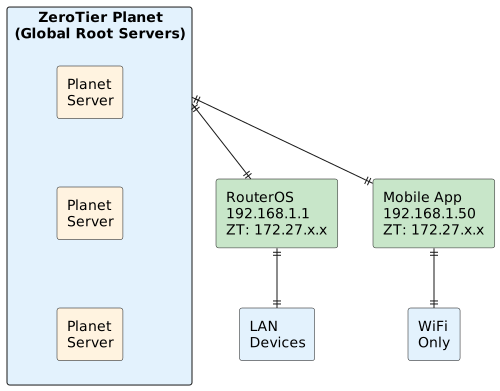
Section titled “The Network Hypervisor Concept”ZeroTier implements what they call a “network hypervisor” - a virtualization layer that creates Ethernet-like networks over the internet:
Key Components
Section titled “Key Components”Planet Servers: Global root servers that help nodes discover each other and facilitate initial connections. These are operated by ZeroTier Inc.
Network Controller: Manages network membership, assigns IP addresses, and distributes configuration. Can be ZeroTier’s cloud service or self-hosted.
Virtual Network Interface: On RouterOS, this appears as zerotier1 (or similar) - a virtual Ethernet interface that handles encrypted packet encapsulation.
Node Identity: Each ZeroTier instance has a unique 40-bit address (like 879c0b5265) that serves as its cryptographic identity.
Network Types
Section titled “Network Types”Public Networks: Anyone can join (rarely used in production) Private Networks: Require authorization from the network controller (recommended)
Prerequisites
Section titled “Prerequisites”- RouterOS 7.1rc2 or later
- ARM or ARM64 architecture device (x86 not supported)
- ZeroTier package installed
- Internet connectivity on UDP port 9993
- Access to ZeroTier network controller (my.zerotier.com or self-hosted)
- Network ID of the ZeroTier network to join
Understanding ZeroTier Networking
Section titled “Understanding ZeroTier Networking”IP Address Assignment
Section titled “IP Address Assignment”ZeroTier networks can assign IP addresses in several ways:
- Managed Assignment: Controller assigns from a pool (most common)
- Manual Assignment: Administrator manually assigns specific IPs
- IPv6 Auto-assignment: RFC4193 or 6plane modes for IPv6
NAT Traversal and Connectivity
Section titled “NAT Traversal and Connectivity”ZeroTier uses sophisticated NAT traversal techniques:

Direct Connection: When possible, nodes connect directly using UDP hole punching Relayed Connection: If direct connection fails, traffic routes through planet servers Local Network Discovery: Nodes on the same LAN can discover each other directly
Configuration Steps
Section titled “Configuration Steps”Step 1: Install ZeroTier Package
Section titled “Step 1: Install ZeroTier Package”Download and install the ZeroTier package (if not already installed):
/system package print where name=zerotierIf not present, download from MikroTik’s extra packages and reboot after installation.
Step 2: Enable ZeroTier Instance
Section titled “Step 2: Enable ZeroTier Instance”Enable the default ZeroTier instance:
/zerotier enable zt1Step 3: Join Network
Section titled “Step 3: Join Network”Join your ZeroTier network using the 16-character network ID:
/zerotier interface add network=1d71939404912b40 instance=zt1 name=zerotier-mainStep 4: Configure Firewall Rules
Section titled “Step 4: Configure Firewall Rules”Allow ZeroTier traffic through the firewall:
/ip firewall filter add action=accept chain=input in-interface=zerotier-main place-before=0 comment="Allow ZeroTier management"/ip firewall filter add action=accept chain=forward in-interface=zerotier-main place-before=0 comment="Allow ZeroTier forwarding"Verification
Section titled “Verification”Check that the ZeroTier interface is created and attempting to connect:
/zerotier interface printExpected Output:
Flags: R - RUNNING# NAME MAC-ADDRESS NETWORK NETWORK-NAME STATUS0 R zerotier-main 42:AC:0D:0F:C6:F6 1d71939404912b40 modest_metcalfe ACCESS_DENIEDVerify the interface receives an IP address after authorization:
/ip address print where interface=zerotier-mainExpected Output (after authorization):
Flags: D - DYNAMIC# ADDRESS NETWORK INTERFACE0 D 192.168.192.105/24 192.168.192.0 zerotier-mainNetwork Authorization Process
Section titled “Network Authorization Process”
For Private Networks
Section titled “For Private Networks”If the network is private (recommended), you must authorize the device:
- Check Node Address:
/zerotier printNote the identity (first 10 characters, e.g., 879c0b5265)
-
Authorize via Controller:
- Log into my.zerotier.com (or your controller)
- Navigate to your network
- Find the new node in the members list
- Check the “Authorized” checkbox
- Optionally assign a specific IP address
-
Verify Authorization:
/zerotier interface printStatus should change from ACCESS_DENIED to OK
Understanding Member Status
Section titled “Understanding Member Status”
ACCESS_DENIED: Node is not authorized (private networks only) OK: Node is authorized and connected NOT_FOUND: Network ID doesn’t exist or node can’t reach controller PORT_ERROR: Local port conflict (rare) CLIENT_TOO_OLD: ZeroTier version incompatible
Advanced Configuration
Section titled “Advanced Configuration”Allowing LAN Access Through ZeroTier
Section titled “Allowing LAN Access Through ZeroTier”
To allow ZeroTier clients to access your local LAN:
- Add route in ZeroTier controller pointing your LAN subnet to this router’s ZeroTier IP
- Configure source NAT (if needed):
/ip firewall nat add chain=srcnat out-interface=ether2 src-address=192.168.192.0/24 action=masquerade comment="ZeroTier to LAN access"Multiple Network Membership
Section titled “Multiple Network Membership”Join multiple ZeroTier networks:
/zerotier interface add network=8056c2e21c000001 instance=zt1 name=zerotier-work/zerotier interface add network=a09acf0233000002 instance=zt1 name=zerotier-homeEach network gets its own virtual interface and IP address space.
Custom Instance Configuration
Section titled “Custom Instance Configuration”Create additional ZeroTier instances for isolation:
/zerotier add name=zt-isolated port=9994/zerotier enable zt-isolated/zerotier interface add network=your-network-id instance=zt-isolatedTroubleshooting
Section titled “Troubleshooting”Problem: Status shows “ACCESS_DENIED”
Section titled “Problem: Status shows “ACCESS_DENIED””Cause: Network is private and node isn’t authorized Solution:
- Verify network ID is correct
- Check authorization in network controller
- Wait up to 60 seconds for status to update
Problem: Status shows “NOT_FOUND”
Section titled “Problem: Status shows “NOT_FOUND””Cause: Network doesn’t exist or connectivity issues Solution:
- Verify network ID (case-sensitive, exactly 16 characters)
- Check internet connectivity:
/ping 8.8.8.8 - Verify UDP port 9993 isn’t blocked
Problem: Can’t ping other ZeroTier nodes
Section titled “Problem: Can’t ping other ZeroTier nodes”Cause: Firewall blocking traffic or routing issues Solution:
- Check firewall rules allow ZeroTier interface
- Verify both nodes are authorized on the network
- Test with:
/ping [remote-zerotier-ip] interface=zerotier-main
Problem: High latency or packet loss
Section titled “Problem: High latency or packet loss”Cause: Connection is being relayed through planet servers Solution:
- Check if direct connection is possible:
/zerotier peer print - Look for “RELAY” in path - indicates relayed connection
- Consider network configuration (symmetric NAT, firewall rules)
- Enable UPnP/NAT-PMP on router if possible
Problem: ZeroTier interface doesn’t get IP address
Section titled “Problem: ZeroTier interface doesn’t get IP address”Cause: Network controller not assigning managed IPs Solution:
- Check network settings in controller
- Verify “Auto-Assign from Pool” is enabled
- Manually assign IP in controller if needed
- Check if IP pool is exhausted
Useful Debug Commands
Section titled “Useful Debug Commands”# Check ZeroTier instance status/zerotier print detail
# View peer connections and paths/zerotier peer print
# Monitor interface statistics/interface monitor zerotier-main
# Check routing table for ZeroTier routes/ip route print where gateway~"zerotier"
# View ZeroTier-specific firewall hits/ip firewall filter print stats where comment~"ZeroTier"Security Considerations
Section titled “Security Considerations”Network Isolation
Section titled “Network Isolation”ZeroTier interfaces should be treated like any other network interface:
# Restrict ZeroTier access to specific services/ip firewall filter add chain=input in-interface=zerotier-main protocol=tcp dst-port=22 action=accept comment="SSH from ZeroTier"/ip firewall filter add chain=input in-interface=zerotier-main protocol=tcp dst-port=80 action=accept comment="HTTP from ZeroTier"/ip firewall filter add chain=input in-interface=zerotier-main action=drop comment="Block other ZeroTier access"Private Network Best Practices
Section titled “Private Network Best Practices”- Always use private networks for production
- Regularly audit network members and remove unused devices
- Use descriptive member names in the controller
- Consider network segmentation for different device types
- Monitor connection logs for suspicious activity
Firewall Integration
Section titled “Firewall Integration”ZeroTier traffic appears as regular network traffic once decrypted:
# Allow specific ZeroTier subnets only/ip firewall address-list add list=zerotier-allowed address=192.168.192.0/24/ip firewall filter add chain=forward src-address-list=zerotier-allowed action=acceptCommon Use Cases
Section titled “Common Use Cases”Remote Site Connection
Section titled “Remote Site Connection”Connect branch offices without complex VPN setup:
- Each site joins the same ZeroTier network
- Configure routing to allow inter-site communication
- Use ZeroTier for management traffic, local internet for user traffic
IoT Device Management
Section titled “IoT Device Management”Securely manage IoT devices across multiple locations:
- Devices join ZeroTier network for management
- No need to expose SSH/HTTP to internet
- Centralized monitoring and configuration
Mobile Worker Access
Section titled “Mobile Worker Access”Provide secure access to company resources:
- Mobile devices join company ZeroTier network
- Access internal services without traditional VPN complexity
- Works seamlessly across different internet connections
Performance Optimization
Section titled “Performance Optimization”Connection Quality
Section titled “Connection Quality”Monitor connection paths to optimize performance:
/zerotier peer printLook for:
- “active,preferred” indicates good direct connection
- “RELAY” indicates suboptimal relayed connection
- Latency values for connection quality assessment
MTU Considerations
Section titled “MTU Considerations”ZeroTier adds encryption overhead. Default MTU is 2800 but may need adjustment:
/interface set zerotier-main mtu=1400Test with different MTU sizes if experiencing fragmentation issues.
Related Topics
Section titled “Related Topics”VPN Alternatives
Section titled “VPN Alternatives”- WireGuard VPN - modern peer-to-peer VPN
- WireGuard Site-to-Site - RouterOS native WireGuard
- IPsec IKEv2 - enterprise VPN standard
- L2TP VPN Server - legacy VPN option
Prerequisites
Section titled “Prerequisites”- Package Installation - install ZeroTier package
- Firewall Basics - allow ZeroTier traffic
Network Configuration
Section titled “Network Configuration”- Static Routes - routing through ZeroTier network
- NAT - masquerade for LAN access
- Bridge Configuration - Layer 2 ZeroTier integration
Security
Section titled “Security”- IP Services - management access restrictions
- Firewall Address Lists - ZeroTier subnet control